Stop Sale 🛑
to stop sale a hotel through our direct hotel contract,
follow the below steps
follow the below steps
Stop Sale Step-by-Step Guide:
- You get the email, for example:

- Go to our back office: Direct Contracts -> Hotels -> Add Hotel Rates

- Type the name (1 word) of the hotel in the “Hotel Name” field and click “Search”:

- As you can see in the email, it is mentioned Lancaster HOTEL – so you are choosing the below mentioned ones, by editing them one by one through clicking the red mentioned icon in the right which is “Add Room Rates”:

- After entering the new page through “Add Room Rates”, please click the “Stop Sell” the choose the “Full Stop Sell”

- Select only the room types mentioned by the hotel in their email by finding the room type/types in the “Inventory Room Category” drop-down list and making sure they will have the tick sign “” next to the name: (*P.S. if the hotel is stopping the Junior Suite for example, you need to stop Junior Suite Double, Junior Suite Twin, Junior Suite Triple and so on.)
- If you don’t room types please head on to the previous tab and select the next one:



- Select the “Date” inclusive of the mentioned date

- And Click “Save”
- Then, please go to “View Stop/Free Sell”, select the “Date” and “Search” in order to check if you did the job correctly:

- Now that you are sure you stopped all the Lancaster Hotels in our system as they might be 1 or more than 2, go to the hotelsPro backoffice to check if we have the hotel there – to close there as well:
https://hdb.metglobal.com/login
Username: TripathonByTripGallery
Password: ZaHir1
- Write couple of letters of the hotel name in the “Hotel Name” and click “Search”:

- Hover the mouse on the “Actions” button on the correct hotel row and click the below mentioned icon of bed :

- Please note that irrelevant of the dates you see in the left side please check all the rows by clicking on icon of bed and make sure to put the stop sales wherever you find the room and the correct dates:

- Hover the mouse to the below section of the “Room(s)” to see the room type:

- And then click on the dates one by one to close them as follows: click on the grey box under the exact date 27 Oct, 2019, From the “*Status” select the “Closed” and “SAVE CHANGES”
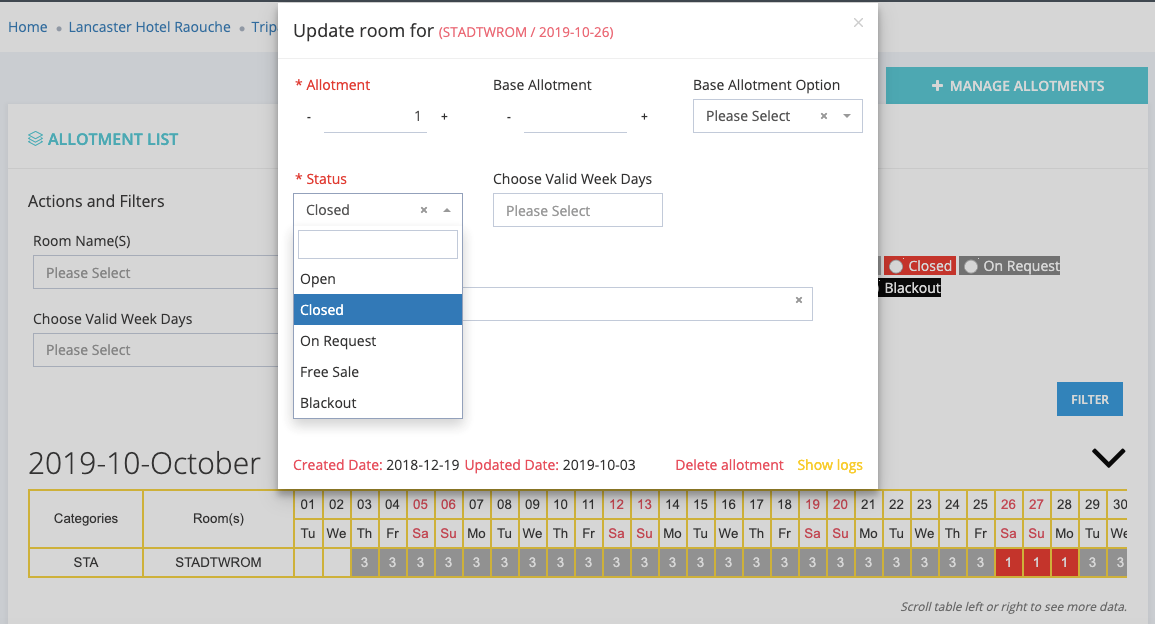

- So, the final look should be red under all the required dates:

- Again, make sure to check all the rows from here and do not forget to forward the same email you got from the hotel to tariff@tripathon.com with an update about what you did and in which platforms:
Keep In Touch