Outlook Rules 📧
to set up and use your outlook, follow the below guidelines
1- Style :
the default mandatory style we use across our company for our emails (new email or reply) is as the following:
Font: Calibri
Size: 11
Color: Blue, Accent 1, Darker 50% (notice screenshot below, the color circled in orange)

2- how to set the style to be default
Windows:
- Go to File > Options > Mail > Stationery and Fonts…
- Select the font of “new mail messages” and then “replying or forwarding messages”
- Select the options that you want to apply to the default font, Font: Calibri > Style: regular > size:11 > and choose the color as per the screenshot in the paragraph above
- Select OK all the way back out to save your changes.
open your outlook and your default font must be set as above automatically.
Mac
- Go to Outlook > Preferences > Fonts
- Change the font for New mail, Reply or forward, or Plain text.
- Change the text size using the slider as per the points mentioned in the paragraph above.
3- signatures:
your signature must be shared with you by our IT team or Gio, once recieved please set it as default by following the below steps:
- In Outlook, select “File“ > “Options“.
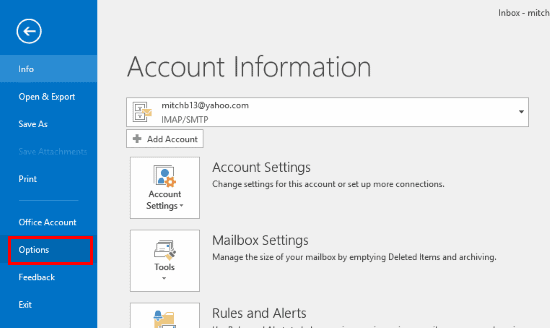
- Select “Mail” on the left, then click “Signatures…”

- Select “New“.
- Give the signature a name. Any type of name will do. Click “OK” when done.
- Under the “Choose default signature “area, select the “E-mail account” you wish to apply the signature to. Also select the name of the signature in the “New messages” and/or “Replies/forwards” fields as desired. In the “Edit signature” area, write the signature just as you would like it to appear in your messages.
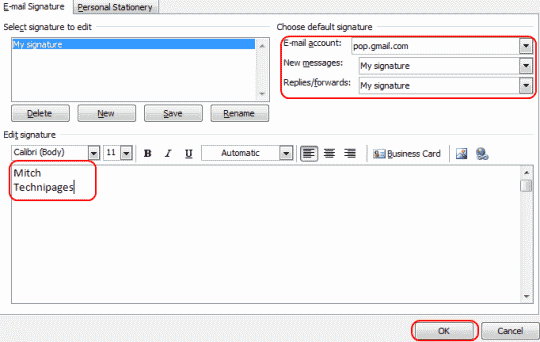
- Click “OK“, then “OK” again and you’re done. Your signature will automatically be added to the bottom of your email messages.
4 – Rule of Rules
in our outlook, we need to set rules for different type of email we are recieving, below you will find the list of mandatory rules you need to have depending on your email:
Info emails: folder for : booking emails/ your personal inbox / info emails / tariff emails / hotelspro booking emails
how to add rule :
- Right-click a message in your inbox or another email folder and select Rules.
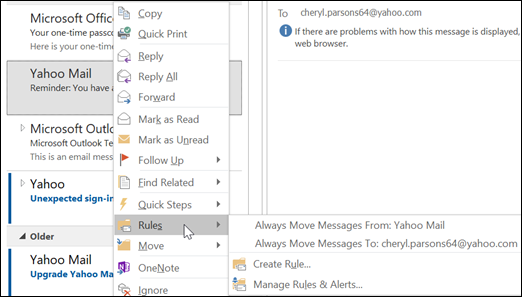
- Select one of the options. Outlook automatically suggests creating a rule based on the sender and the recipients. To view more options, select Create Rule.
- In the Create Rule dialog box, select one or more of the first three checkboxes. here you need to choose the email from the sender or subject contains a line etc, if you feel unsure, refer to IT or Gio to assist you
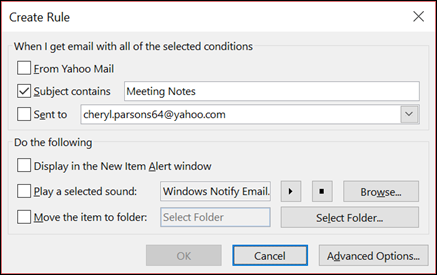
- In the Do the following section, if you want the rule to move a message to a folder, check the Move item to folder box, then select the folder from the Select Folder dialog that pops up, and then click OK.
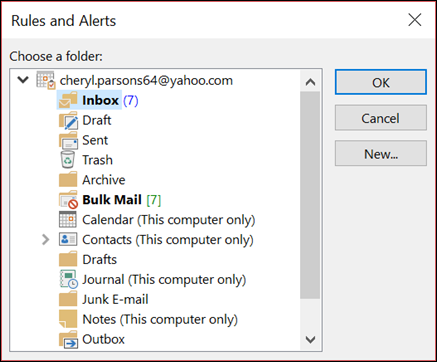
- Click OK to save your rule.
Keep In Touch