
How To Add Cases On Trello:
-
Go to https://trello.com/b/yNA8KyDi/email-follow-ups-trello
-
In the “Pending case” section click the tree dots -> Add Card …

-
If there is a TG number, please write it and put a slash “ / “, if not go to the next step.
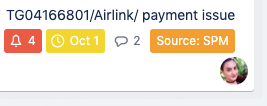
-
Next please write the Agency name and again put a slash “ / “, and in short write the topic
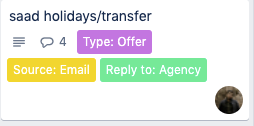
-
And click to enter inside the case:
In the “Description” Field please write the email subject, and leave 1-line space and below paste the email body:
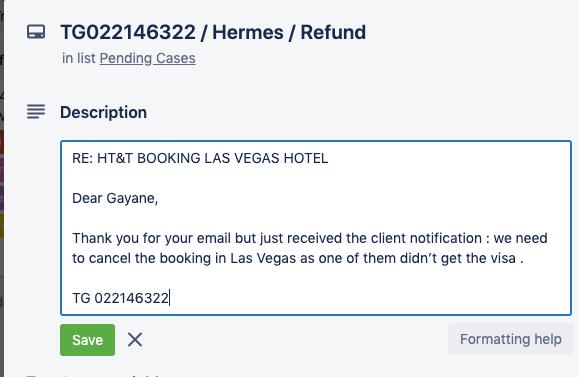
-
Add the “Due Date” from the right column which should be one of the following:
-
The check-in date,
-
Its cancellation deadline if the case should be handled before that
-
The date when the case should be finished
-
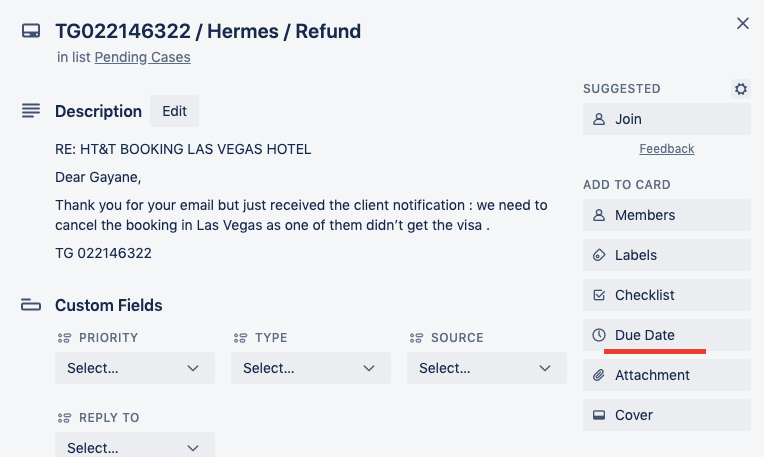
-
Add the Custom Fields respectively “Priority, Type, Source, Reply to”
Timings:
Evening/night shift starts when the leader and the team are leaving – at
18:30-19:00 Yerevan time,
17:30-18:00 Beirut and Damascus times,
16:30-17:00 Cairo time,
15:30-16:00 London time,
hence the evening shift couple/ trio / solo must be ready by that time. A 30-minute window can be provided for you before starting of the shift to move to your house or preferred point that you will work your shift from and that 30 minutes should be strictly BEFORE starting the shift and not afterwards.
Please note that above is not the time when you should come to work, but the time when you should drop all what you have and start the duty of the evening/night shift. For the exact working hours of the day, you will coordinate with the HR team as well as the night shift ending time.
Evening/Night Shift Responsibilities:
- One of you should be the leader of the shift.
- Emails – Please note that all the members of the evening shift staff should have the info@tripathon.com and book@tipathon.com forwarded to your emails (if you don’t have them permanently please make sure to ask Zahir, M. Taresh or Daniel to forward them to you 1 hour to 30 min BEFORE your shift starts!). One of you should always check them and add the new cases on Trello (please find the full step-by-step guide here), and whichever case is urgent – to be dealt with immediately.
- Confirmation Number – add confirmation numbers to each hotel booking in our system which is not reconfirmed by the Conf. number department with ONLY the same day and next day check-ins.
*Reminder
The “Remarks” box is for Tripathon Internal use, while the “Special Notes” box is for the agencies (whatever you write there the agency will receive it by an email)

- Stop Sale – put stop sales based on the hotels’ email received starting from 18:30 Yerevan time, 17:30 Beirut and Damascus times, 16:30 Cairo time onwards. All stop sales received before those times is not evening shift responsibility.When you received the stop sale email please read carefully, then put the stop sale in our system and if we have the same hotel in HotelsPro – put it there as well – and forward the same email you received to Tariff@tripathon.com writing “Done in Tripathon system”, or “Done in Tripathon and HotelsPro systems”, or “Didn’t find the rates in either systems”.More Details of how to do it here
- HotelsPro bookings – whenever we receive a booking request from compass@metglobal.com i.e. for HotelsPro to book@tripathon.com – we need to make this booking no matter when is the requested check-in.More Details of how to do it here
- Phones the evening shift staff, if both of you will not work from Yerevan or Beirut office, should open the call software on their laptop “MicroSIP” 30 minute before the beginning of the shift and make sure it’s online (if the software is not installed please check with Gio or M. Taresh) and make sure that you are receiving calls normally, in any other case inform Gio, Gaya, M. Taresh or Zahir to forward the calls to you so that anyone would be able to reply the Lebanon and Iraq landlines.
- Viber and Whatsapp – with Iraqi number should be installed at least on one of the evening shift staff laptops or the phone itself should be with you – please be responsive there and try to prioritize the same or next day check-in cases, for any others if you don’t have time kindly ask them to contact with you tomorrow during working hours and create a case about it in Trello /pending cases section/.(+964 7511136696 – can be installed within 2 min with the help of someone from Armenia using the telephone)
- Skype – Help desk skype should be open at anyone’s end during the evening shift and deal with the cases as mentioned in the above section No. 6 about viber, whatsapp
Current Login details
Login: trip-gallery
Password: #team@tripathon.5
Visa to Sharm El Sheikh with Ema Tours
- NET
- 15 USD Per person with Round Trip shared transfer + Visa + meet and assist + Security Approval
- 25 USD Per person with Round Trip private round-trip transfer + visa + meet and assist + security approval
- Children Between 0-2 : free
- Children : Between 02 – 12 years old : 5 USD per person in shared transfer
- Children :Between 02- 12 years old :10 USD per person in private transfer
- CLEINT ( selling rate)
- 28 USD Per person with Round Trip shared transfer + Visa + meet and assist + Security Approval
- 40 USD Per person with Round Trip private round-trip transfer + visa + meet and assist + security approval
- Children Between 0-2 : free
- Children : Between 02 – 12 years old : 10 USD per person in shared transfer
- Children :Between 02- 12 years old :20 USD per person in private transfer
- Steps :
- Client should send this
- Reservation on Tripathon (TG number)
- Flight details for the transfer
- Passport copy
- Fill the form by the agency
- 3-4 working day ( Friday- Saturday), and you will receive acknowledgment
- Send to supplier:
yasmine@ematours.com; res2@ematours.com- mohamed@ematours.com; operation@ematours.com
Yasmin : 00201099904315 ( what’s up + call ) operation contact
Emergence number
Phone : / 0020222715749 – 0020222740959
Mobile : / 00201099921857 – 0020201001718460
- Make sure every time to inform Ema tours that they will hold the name Tripathon – every time
- Make sure to inform the agency that the lead name will be Tripathon
*** Note : some clients don’t want to use any transfer they just need visa, in this case the best is to take shared transfer because it is the cheapest and to inform to the supplier Ema tours that the client will not use the transfer.
- Ready-made email:
Dear Colleagues,
Kindly send us the following information and documents which are mandatory to proceed with the security approval for Sharm El Sheikh:
- Hotel booking ID from Tripathon.com
- Flight details
- Copy of passport(s)
- Filled in the attached file with the requested details in Arabic
The rate per person with shared (or private) will be: USD 0.00 – Non-refundable
Please note that after receiving all the required details it will take 3-4 working days (excluding Fridays and Saturdays) and you will receive an email updating that security approval has been acknowledged (without any documents).
Should you need any further assistance please do not hesitate to contact us.
- How to draw the booking?
Add the offline bookings:
- In case the client will not use the transfer draw it as MISC and write in “Hotel/Service “and “Description” sections “visa for TG..”
- If they should USE the transfer please draw the offline as transfer for EACH way and mention in “Transfer Name” section “Transfer form Sharm El Sheikh Airport to Hotel (name it) plus Security approval” and in the section of “Remark” please write “the driver will Meet at the arrival hall with TRIPATHON sing board”
How to make a HotelsPro reservation:
-
Once the email is received from MetGlobal, (see attached example), please read all the details below and immediately create a new case on Trello before proceeding:
-
The hotel name

-
The dates

-
The nationality which is indicated with 2 letters, if you are not sure what it means please google it

4. The reference number which should be used in as “voucher ID” in the booking

-
The meal type

-
The total agent rate
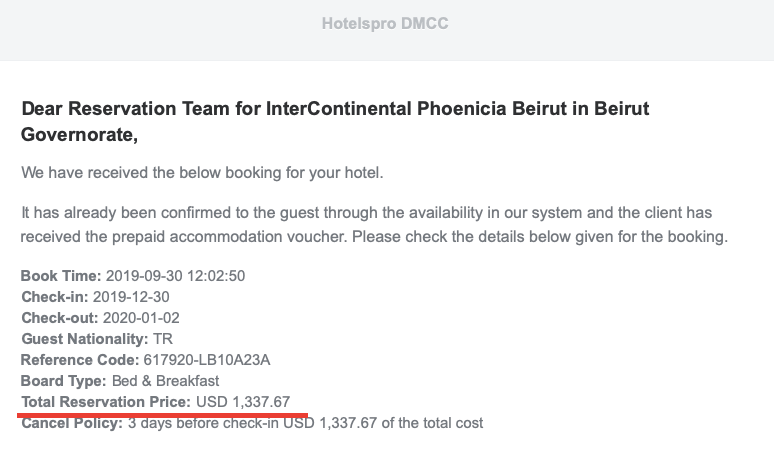
-
The deadline
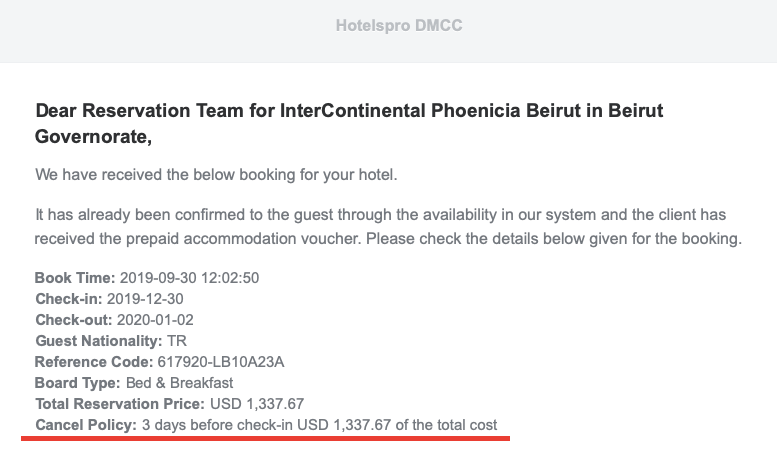
-
The room type

The guests’ names
-
Now please go to Tripathon backoffice: Agents/Users -> Agents -> Search:
-

- Search for Hotelspro “agent” and click login as admin:

-
And in the front end make the relevant search:

-
So below is the correct room type with correct deadline (please note that our rate as Supplier should be cheaper than the Agent rate we saw in the MetGlobal email):


-
Fill in the names by means of copy/paste:

- And make the booking! If the booking is non-refundable put the “voucher ID” the “reference code” from the MetGlobal email.
- Then copy the TG number and go to Tripathon Backoffice to voucher it (if the booking is refundable, ALWAYS VOUCHER HOTELSPRO BOOKINGS) and to modify the Agent rate. Once vouchered go to “Modify” and add the mark-up to make the agent rate to be 1337.76 USD as you saw in the email of MetGlobal, either by adding the markup by percentage or by amount:

or

And regulate with discounts to make the amount accurate:

-
And save the modification without ticking the boxes above the “Save” button.

-
Please write the TG number in the relevant Trello case, in the comment field.
-
Reconfirm the booking with the hotel and of the check-in is close write the confirmation number and the staff name in our system, in “Add Hotel Confirmation #” box, inside the “Enter Hotel Confirmation No” field, if the check-in after more than 3 days, please put the details in the “Remarks” field.
-
Login to MetGlobal website:
https://hdb.metglobal.com/login
Username: TripathonByTripGallery
Password: ZaHir1
-
Go back to the email of MetGlobal and click the green “Confirm This Booking” button and it will redirect you to their website, and to the page where you should write to confirmation number from the hotel of the exact booking you are working on:

-
Write the hotel confirmation number in the “Enter Hotel Confirmation No” field, along with the hotel staff name in the “Message” field, and “Submit”

-
Update the Trello case that Tripathon and HotelsPro systems have been updated with the hotel confirmation number and that’s it.

Stop Sale Step-by-Step Guide:
- You get the email, for example:

- Go to our back office: Direct Contracts -> Hotels -> Add Hotel Rates

- Type the name (1 word) of the hotel in the “Hotel Name” field and click “Search”:

- As you can see in the email, it is mentioned Lancaster HOTEL – so you are choosing the below mentioned ones, by editing them one by one through clicking the red mentioned icon in the right which is “Add Room Rates”:

- After entering the new page through “Add Room Rates”, please click the “Stop Sell” the choose the “Full Stop Sell”

- Select only the room types mentioned by the hotel in their email by finding the room type/types in the “Inventory Room Category” drop-down list and making sure they will have the tick sign “” next to the name: (*P.S. if the hotel is stopping the Junior Suite for example, you need to stop Junior Suite Double, Junior Suite Twin, Junior Suite Triple and so on.)
- If you don’t room types please head on to the previous tab and select the next one:



- Select the “Date” inclusive of the mentioned date

- And Click “Save”
- Then, please go to “View Stop/Free Sell”, select the “Date” and “Search” in order to check if you did the job correctly:

- Now that you are sure you stopped all the Lancaster Hotels in our system as they might be 1 or more than 2, go to the hotelsPro backoffice to check if we have the hotel there – to close there as well:
https://hdb.metglobal.com/login
Username: TripathonByTripGallery
Password: ZaHir1
- Write couple of letters of the hotel name in the “Hotel Name” and click “Search”:

- Hover the mouse on the “Actions” button on the correct hotel row and click the below mentioned icon of bed :

- Please note that irrelevant of the dates you see in the left side please check all the rows by clicking on icon of bed and make sure to put the stop sales wherever you find the room and the correct dates:

- Hover the mouse to the below section of the “Room(s)” to see the room type:

- And then click on the dates one by one to close them as follows: click on the grey box under the exact date 27 Oct, 2019, From the “*Status” select the “Closed” and “SAVE CHANGES”
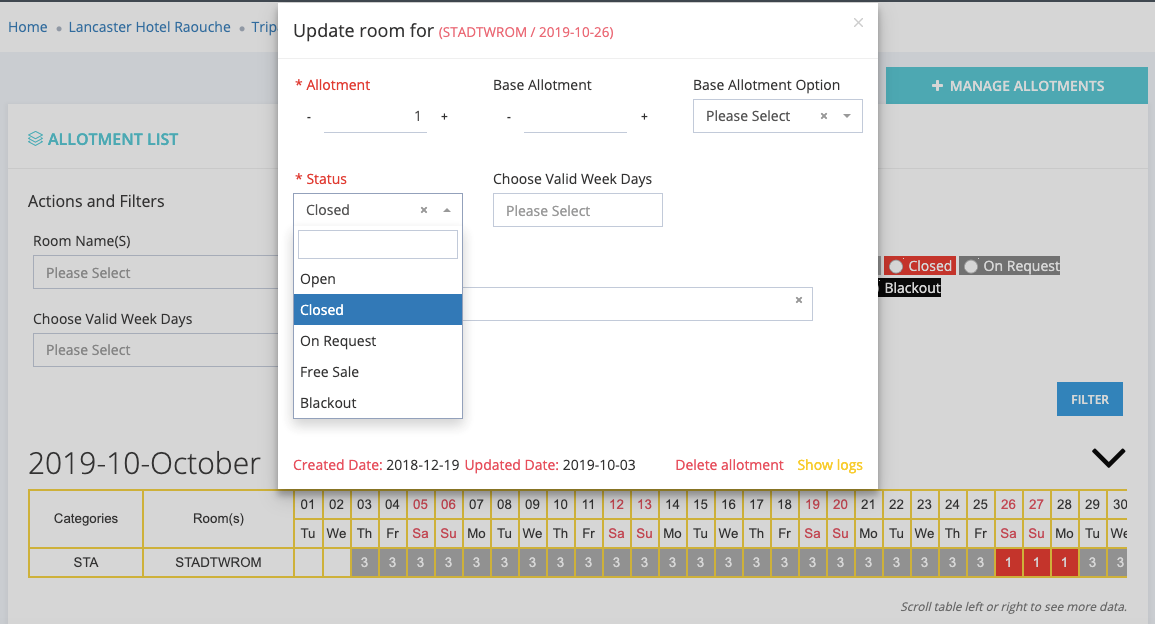

- So, the final look should be red under all the required dates:

- Again, make sure to check all the rows from here and do not forget to forward the same email you got from the hotel to tariff@tripathon.com with an update about what you did and in which platforms:

- When you book by Jam transfer and see a rate there – it is including 5% commissions and when you draw the offline you should write the NET rate EXCLUDING commissions and you can find the exact number when you search the booking in “transfers” section inside JAM transfer website:

2. You should NOT change the the currency of supplier in the offline booking. You can make agency rate whatever you want but supplier you should stick to the currency you see in the screenshot i sent above
3. Not only with jam but all transfers, even if you book round trip, you should draw 2 offline bookings 1st with arrival date and you can write arrival transfer from Paris CDG airport to hotel George V and the return something like one way transfer from the hotel to airport and divide the supplier rate and the agency rate that you gave and in each TG write the same supplier ref number.
Please follow these rules otherwise i accounts will suffer from the incorrection, then send all the list to me, then i will waste time in checking them one by one and asking you to correct.
Keep In Touch